How to Turn a Video Into a Podcast Clip and Subtitle File (Free Workflow)
Equipo de DecoToolkit
Producto y Contenido
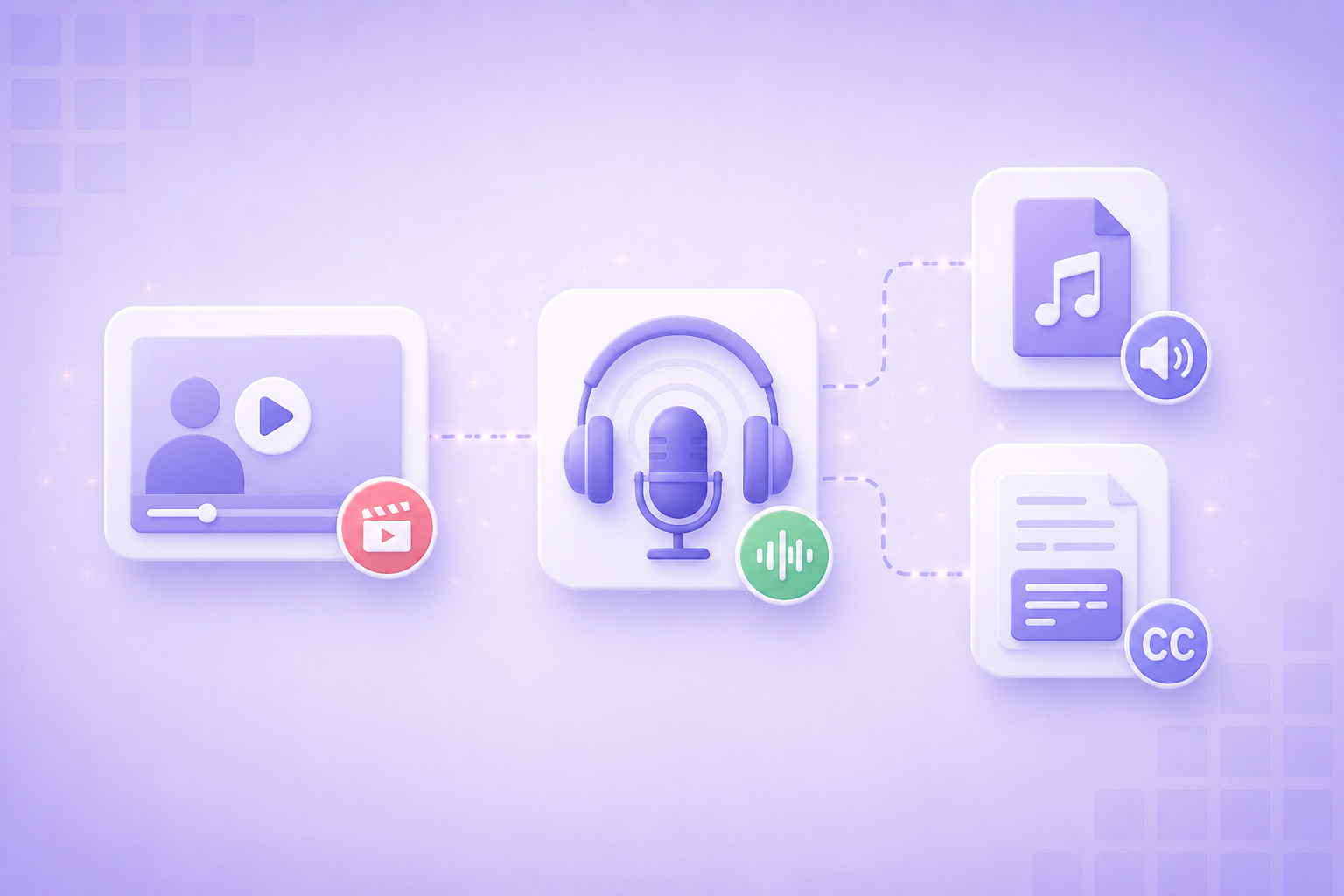
You already recorded the video — a tutorial, an interview, a webinar recap. Turning that same file into a podcast episode and a subtitle-ready transcript takes a handful of short steps and no new equipment, just a browser and the raw video file you already have.
Step 1: Extract the audio track from your video
Start with the Video to Audio Converter to pull the audio track out of your MP4, MOV, or WebM file. This alone gives you a standalone audio file you can drop into a podcast episode without re-recording anything — useful for interviews, panel discussions, or any talking-head video where the visuals aren't essential to the podcast version.
Step 2: Convert it to the format your podcast host actually wants
Most podcast hosting platforms expect MP3, and some prefer specific formats depending on whether you're optimizing for file size or quality. Run your extracted audio through the Audio Converter to switch between MP3, WAV, OGG, AAC, and FLAC depending on what your host requires — this also matters if you're repurposing the same audio for an edit later that expects a different format than your podcast host does.
Step 3: Turn your captions into a transcript or subtitle file
If your original video already has captions or an SRT file, don't start the transcript from scratch. The Subtitle & Caption Converter converts between SRT and VTT formats and can export a plain-text transcript from either one — useful as the starting point for show notes, a blog recap, or captions on the platforms where you re-upload the clip.
Step 4: Shift timestamps if you trimmed the video
If you cut the intro, removed a long pause, or trimmed the video down for the podcast version, your original subtitle timestamps will drift out of sync. The same subtitle converter tool lets you shift all timestamps by a fixed offset in one pass, instead of manually re-timing every line by hand.
Step 5: Write show notes that actually match your episode length
Once you have a transcript, drafting show notes is mostly editing, not writing from scratch. If you're keeping notes to a specific length for an app or newsletter, run the draft through the Word Counter to check word and character counts before you publish.
A simple publishing checklist
- Audio track extracted from the original video file
- Audio converted to the format your podcast host requires
- Transcript or subtitle file generated from existing captions
- Timestamps re-shifted if the video was trimmed or cut
- Show notes drafted from the transcript and checked for length
Why this workflow is worth the fifteen minutes
Recording original audio-only content takes real setup — a quiet room, a decent mic, an actual script. Repurposing a video you already made removes almost all of that friction. The same interview, tutorial, or panel discussion becomes a podcast episode, a set of captions for social clips, and a written recap, all from footage already sitting in a folder.
Frequently Asked Questions
Can I turn any video into a podcast episode?
Any video with usable audio works, but talking-head content — interviews, tutorials, panel discussions — repurposes best, since the visuals aren't essential to following along in audio-only form.
What audio format do podcast hosts actually want?
Most platforms accept MP3, but requirements vary by host and by whether you're optimizing for file size or audio quality. Check your specific host's upload requirements, then convert your audio to match.
How do I get a transcript if my video doesn't have captions yet?
You'll need to generate captions first (most video editors and some platforms offer auto-captioning), then convert that SRT or VTT file into a plain-text transcript to use for show notes or a blog recap.
Why would I need to shift subtitle timestamps?
If you trim, cut, or otherwise edit the video after the captions were generated, the original timestamps no longer match the new runtime. Shifting them by a fixed offset re-syncs the subtitles without manually re-timing each line.
Do I need special software to extract audio from a video?
No — a browser-based video-to-audio converter handles the extraction without installing a video editor or command-line tool.
What is the difference between SRT and VTT subtitle formats?
Both store timed caption text, but VTT is the web standard used by most browsers and streaming platforms, while SRT is the more universal format supported by most video editors and older platforms. Which one you need depends on where you're publishing.