How to Resize and Compress Images for Social Media Without Photoshop
Equipo de DecoToolkit
Producto y Contenido
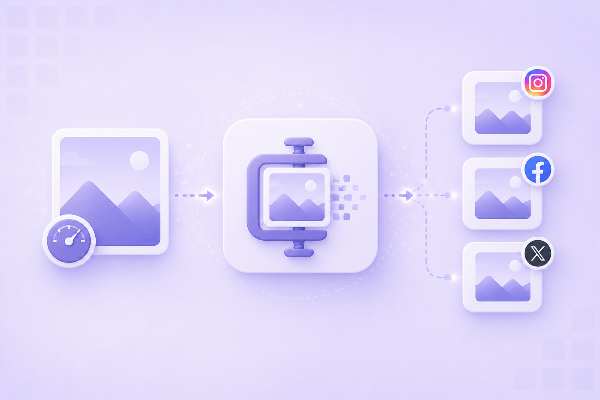
Social media platforms are picky about image dimensions. Upload a photo that's the wrong size and it gets cropped, stretched, or compressed into a blurry mess. Upload one that's too large and it slows down your feed. This guide walks through the exact steps to resize and compress images for Instagram, LinkedIn, X (Twitter), Facebook, and YouTube thumbnails — without Photoshop or a paid subscription.
Why Image Size Matters on Social Media
Every platform has its own recommended image dimensions. Uploading the wrong size doesn't just look bad — it affects engagement. Platforms recompress images before displaying them, and if your source file is already over-compressed or the wrong aspect ratio, the result is noticeably worse.
For example, Instagram will crop a 16:9 landscape photo to 1:1 in the grid view, cutting off faces or key content. LinkedIn will auto-compress a 5MB PNG into a muddy JPEG. Getting dimensions and file size right before upload gives you control over what your audience sees.
Platform Image Dimension Reference
Current recommended dimensions for the major platforms:
Instagram Feed Post: 1080 x 1080 px (square), 1080 x 1350 px (portrait 4:5), 1080 x 566 px (landscape)
Instagram Story / Reel cover: 1080 x 1920 px (9:16 vertical)
X (Twitter) post image: 1200 x 675 px (16:9) — displays well in timeline cards
LinkedIn post image: 1200 x 627 px, or 1200 x 1200 px for square posts
LinkedIn profile banner: 1584 x 396 px
Facebook post image: 1200 x 630 px
YouTube thumbnail: 1280 x 720 px (16:9) — minimum 640 px wide
Pinterest pin: 1000 x 1500 px (2:3 vertical)
Step 1: Resize Your Image to the Right Dimensions
Use DecoToolkit's Image Resizer to resize images to exact pixel dimensions without design software.
Steps:
1. Open the Image Resizer and upload your photo.
2. Enter the target width and height. For an Instagram square post, set 1080 x 1080.
3. Choose whether to maintain aspect ratio or force exact dimensions. If your source is landscape and you want square, force the dimensions.
4. Download the resized image.
Tip: If your image needs a different aspect ratio, resize to the closest width first, then crop manually. The goal is to get close to target resolution without stretching the image.
Step 2: Compress the Resized Image
After resizing, the file may still be too large. Most platforms accept images up to 5-8MB, but smaller files load faster, especially on mobile connections.
Use DecoToolkit's Image Compressor to reduce file size without a visible quality drop. The tool uses smart compression that balances size and clarity.
Target file sizes:
Instagram, X, LinkedIn post images: under 1MB for fast loading
YouTube thumbnails: under 2MB (YouTube accepts up to 2MB for custom thumbnails)
Facebook: under 1MB to avoid aggressive recompression by the platform
Step 3: Choose the Right File Format
JPEG is the standard for photos. Well-supported across all platforms, produces small file sizes.
PNG is better for graphics, screenshots, logos, and content with text or transparency.
WebP produces smaller files than JPEG at equivalent quality, but not all social platforms accept it. Instagram requires JPEG or PNG.
If you have a PNG that's too large for a platform requiring JPEG, convert it with PNG to JPG Converter. Going the other direction — for transparent backgrounds — use JPG to PNG Converter. For website images where modern browser compatibility matters, use the WebP Converter.
A Real Workflow: Preparing Images for a Multi-Platform Campaign
Here's how a content creator can prepare a batch of images for a campaign:
1. Start with the highest-resolution source image available — at least 1920 px wide.
2. Resize to 1080 x 1080 px for Instagram (save a copy).
3. Resize to 1200 x 675 px for X and LinkedIn (save another copy).
4. Compress both copies to under 500KB for fast loading.
5. For YouTube, keep a separate 1280 x 720 px copy — thumbnails need to look sharp at small sizes in search results, so don't over-compress.
All of this can be done in a browser using free tools. No software installation, no subscriptions, no file uploads to a server that stores your images.
Common Mistakes to Avoid
Uploading a tiny image and expecting the platform to enlarge it. Most platforms won't upscale, and if they do, the result is blurry. Always start with a source image at least as large as the target dimensions.
Compressing before resizing. This creates double-compression: compress once, resize, then the platform compresses again. Always resize first, then compress.
Uploading PNG for photos. A high-resolution photo in PNG format can be several megabytes, triggering aggressive server-side compression that often produces worse results than a well-compressed JPEG.
Using the exact same image for every platform. A 1200 x 627 px landscape image will be cropped on Instagram's square grid. Prepare platform-specific sizes for important content.
Frequently Asked Questions
Do I need to resize images before posting to Instagram?
Technically, Instagram resizes and crops automatically. But letting the platform decide means losing control over what gets cropped. Manual resizing ensures key content is always visible.
What is the maximum file size for social media images?
It varies: Instagram allows up to 8MB, X allows 5MB, LinkedIn 5MB, Facebook 10MB. Large files get recompressed before display, often with quality loss. Keeping images under 1MB is good practice.
Does image compression affect social media post quality?
Smart compression at 70-85% JPEG quality produces files that look identical to the original at normal viewing sizes. Platforms do their own compression after upload, so starting with a well-compressed JPEG gives the platform less to do.
What image format is best for Instagram?
JPEG for photos. PNG for graphics with text or transparent backgrounds. Instagram does not officially support WebP.
Can I use these tools on a mobile phone?
Yes — DecoToolkit runs in any modern mobile browser. The Image Resizer and Image Compressor work on iOS and Android without any app installation.