PDF to JPG: When You Should Turn a PDF Into Images
DecoToolkit Team
Product & Content
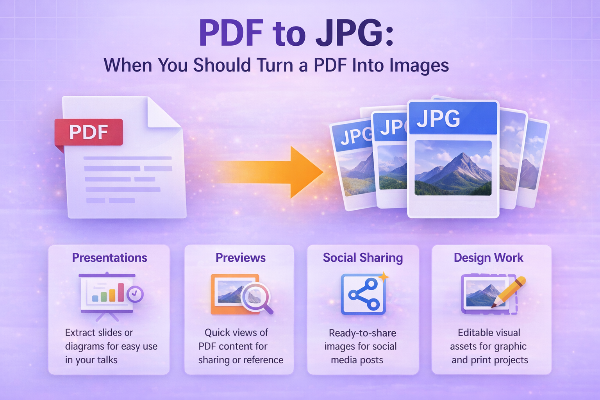
PDF is a great format for sharing documents, but sometimes you do not need a document at all. You need images. That is where PDF to JPG conversion becomes useful. It allows you to turn individual pages into image files that are easier to preview, upload, annotate, or reuse in other contexts.
A common example is presentations, flyers, forms, and visual reports. If the content is mostly graphical and you want to place a page into a slide deck, send it in chat, upload it to a website, or share it on social media, a JPG can be more convenient than a PDF. Many platforms handle images faster and more predictably than multi-page documents.
Another common use case is extracting pages for design references or approvals. Instead of sending a full PDF and asking someone to open the correct page, you can convert the relevant page to JPG and share it directly. This is helpful in marketing, design, real estate, education, and print workflows.
There is also a practical reason: previews. If you are building a content library or an internal archive, image previews make scanning and identifying documents much easier. A JPG thumbnail of a PDF page can tell you more at a glance than a filename ever could.
That said, JPG is not always the right output. It is best when you need compatibility, lightweight previews, or quick visual sharing. If the page contains lots of tiny text or you need transparency, another format may be better. But for general page snapshots and visual reuse, JPG remains one of the easiest choices.
Quality is the main thing to watch. A poor conversion can make text blurry or create visible compression artifacts. The safest workflow is to start with a clean PDF and export at a resolution high enough for your use case. If the page will be viewed on-screen only, moderate quality is often enough. If it will be used in print or zoomed heavily, use a higher-quality export.
It is also worth deciding whether you need all pages or just selected ones. Converting every page can create clutter. In many cases, only the cover page, one chart page, or a couple of forms are actually needed. Selective export keeps your files cleaner and easier to manage.
If you work with scanned PDFs, image conversion can also simplify editing and OCR workflows. Turning a page into JPG makes it easier to crop, annotate, blur sensitive areas, or include it in a visual presentation. Just remember that once you move from document format to image format, text may no longer be selectable unless you run OCR separately.
The best PDF to JPG tools make this easy: upload the PDF, preview pages, choose the output, and download either individual images or a ZIP when there are many pages. When the process happens quickly in the browser, it is even more convenient.
PDF to JPG is one of those conversions that becomes useful the moment you stop thinking of a PDF only as a document. Sometimes it is really a collection of visual pages, and images are simply the better format for what comes next.