
The Job Application Document Checklist: Resume, Cover Letter, and Portfolio, Done Right
DecoToolkit Team
Produkt & Inhalt
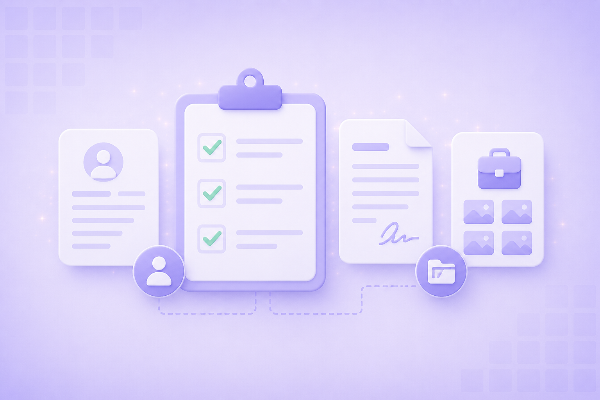
Losing an interview because a PDF didn't open properly, or because a file was too large for an upload form, has nothing to do with your qualifications — it's a formatting problem, and it's completely avoidable. This checklist walks through six things worth checking before you hit submit on a job application, using a handful of free browser tools instead of guesswork.
Why formatting still costs people interviews
Most applicant tracking systems (ATS) and recruiter inboxes are picky in small, predictable ways: the wrong file type, a file that's too large to upload, three separate attachments when the portal only accepts one, or a cover letter that runs long because nobody checked the word count. None of these are hard to fix. They're just easy to forget when you're focused on the actual content of your application.
Step 1: Convert your resume and cover letter to PDF
Word documents render differently depending on the software, fonts installed, and operating system opening them — margins shift, fonts substitute, and page breaks land in the wrong place. A PDF freezes your layout exactly as you designed it. Use the Word to PDF Converter to turn your resume and cover letter into PDFs before sending anything. For the deeper version of this step, see How to Convert Word to PDF Without Losing Formatting.
Step 2: Check the file size before you upload
Company portals frequently cap uploads at 2MB or 5MB — a resume with a headshot, or a portfolio PDF with sample images, can blow past that limit fast. Run your file through the PDF Compressor before uploading; it typically cuts file size significantly without making the text look blurry or unprofessional.
Step 3: Combine multiple files into one upload
When a job posting asks for "resume, cover letter, and references," don't make the recruiter open three separate attachments. Use Combine PDF to merge everything into a single, ordered document. For a longer walkthrough on getting the page order right, see How to Merge PDF Files in the Right Order.
Step 4: Get your photo and portfolio images sized correctly
If the application asks for a headshot, or you're attaching a portfolio, use the Image Resizer to hit exact pixel dimensions instead of guessing. LinkedIn recommends a 400×400px profile photo, and many portals reject images that don't match their stated size or aspect ratio.
Step 5: Clean up text you pasted from job boards or old drafts
Copying a job description into your cover letter draft, or reusing text from an old resume, often drags along invisible double spaces and inconsistent spacing. Run the text through Remove Extra Spaces before your final proofread — it takes a few seconds and catches a class of small mistakes that are surprisingly easy to miss on screen.
Step 6: Stay inside the word count for your cover letter
Most hiring managers expect a cover letter in the 250-400 word range. Paste your draft into the Word Counter to check word, character, and sentence counts in real time as you edit, instead of estimating and hoping.
Bonus: track versions and deadlines
If you're tailoring your resume for multiple roles, it's easy to lose track of which version says what. Text Diff lets you compare two drafts side by side and see exactly what changed. And if you're juggling several application deadlines and interview dates, the Date Difference Calculator gives you an exact day count so nothing quietly slips past you.
The 10-minute pre-submit checklist
- Resume and cover letter saved as PDF, not Word
- File size checked and compressed if it's over the portal's limit
- Multiple documents combined into one file when the posting asks for it
- Headshot or portfolio images resized to the requested dimensions
- Pasted text cleaned of extra spaces and stray line breaks
- Cover letter word count confirmed against the target range
- Latest version confirmed against your last draft
None of these steps take more than a minute or two individually, but skipping them is one of the more avoidable reasons a strong candidate gets filtered out before a human ever reads the application.
Frequently Asked Questions
What file format should I use for my resume — Word or PDF?
Send a PDF unless the job posting explicitly asks for a Word document (some ATS platforms parse .docx more reliably for keyword scanning). PDF is the safer default because it preserves your formatting exactly across every device and operating system.
How small does my resume PDF need to be?
Most portals cap uploads at 2MB-5MB. If your file includes a headshot, embedded fonts, or portfolio samples, run it through a PDF compressor first — a single-page text resume rarely needs it, but a portfolio PDF often does.
Should I send one combined PDF or separate files?
Follow the job posting's instructions first. If it doesn't specify, one combined PDF (resume, cover letter, references in that order) is usually easier for a recruiter to open and skim than three separate attachments.
What size should my LinkedIn profile photo be?
LinkedIn recommends 400×400 pixels. Many application portals have their own size and aspect-ratio requirements for headshots, so it's worth resizing per platform rather than reusing one photo everywhere.
Is there an ideal cover letter length?
Most hiring managers suggest 250-400 words — long enough to make a real case, short enough that it actually gets read in full.
How do I keep track of which resume version I sent to which company?
Comparing drafts side by side before you send each tailored version helps you catch outdated details, like an old job title or the wrong company name, that are easy to miss on a quick read-through.