How to Create a WiFi QR Code for Your Café, Airbnb, or Home Office
Equipe DecoToolkit
Produto e Conteúdo
If you run a café, manage an Airbnb, host client meetings, or share WiFi with guests regularly, you've probably typed your network password more times than you'd like to count. Guests misspell it, ask for it twice, or struggle with the special characters. A WiFi QR code fixes all of this: the guest scans it, taps Join, and they're connected — no typing required.
What Is a WiFi QR Code?
A WiFi QR code stores your network name (SSID), password, and security type in a machine-readable format. When someone points their phone camera at it, the OS reads the network credentials automatically and shows a one-tap join prompt.
No app needed. Both iOS (since iOS 11) and Android (since Android 10) support WiFi QR codes natively through the built-in camera. Practically every smartphone sold in the last seven years can use one.
Who Should Use a WiFi QR Code?
A WiFi QR code is worth creating any time you share a password with people who don't need to remember it:
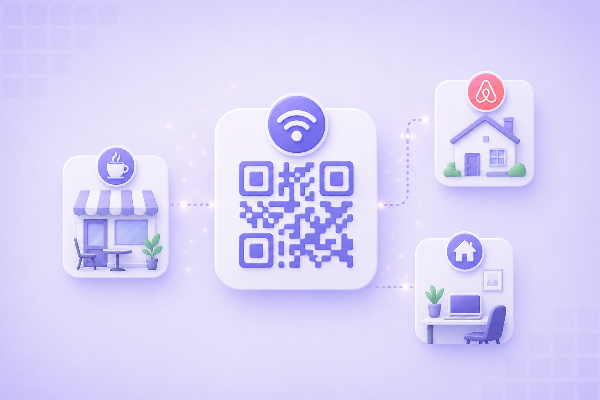
- Cafés and restaurants: place one on each table, at the counter, or on a card insert
- Airbnbs and short-term rentals: print one for the welcome pack or stick it near the router
- Home offices: let clients or visitors connect without interrupting a call to spell out the password
- Co-working spaces: display one at the entrance or reception desk
- Events and conferences: print it on signage or programs
- Retail stores: add it to your checkout counter or fitting room
How to Create a WiFi QR Code With DecoToolkit
DecoToolkit's WiFi QR Code Generator runs entirely in your browser. Your network name and password are never uploaded to any server.
Here is the full process:
- Go to decotoolkit.com/wifi-qr-code
- Enter your network name (SSID) exactly as it appears in your device's WiFi settings
- Enter your WiFi password
- Select the security type — WPA2 or WPA/WPA2 is standard for modern routers
- Click Generate
- Download the QR code as a PNG file
The whole process takes about 30 seconds. Download the PNG to your phone or computer so you can reprint it any time.
What to Do With the QR Code Once You Have It
Print it for physical spaces
Print the QR code on card stock, laminate it, or include it on a sign. A 3-inch square QR code is readable from about 10 inches away. If you're mounting it on a wall or placing it across a table, go larger — 5 or 6 inches. Add a short label beneath it like "Scan to connect to our WiFi" so guests know what it's for.
Include it in digital materials
If you share a PDF welcome guide, a Notion check-in page, or a digital menu, embed the QR code as an image. Guests can scan it directly from a screen on most phones.
Pair it with other QR codes
If you're setting up QR codes for a business, you might also want one for your website or booking page (create it with the URL QR Code Generator at decotoolkit.com/url-qr-code) or for your contact card (decotoolkit.com/vcard-qr-code).
Tips for Better QR Codes
- Test before printing: scan the downloaded QR code on an actual phone before printing copies
- Keep contrast high: black QR codes on a white background scan reliably; avoid busy backgrounds
- Leave a quiet zone: QR codes need a blank border around them — don't crop the image too tightly
- Use your guest network: for hospitality use, create a separate guest WiFi network with limited bandwidth or device isolation, and use that password for the QR code rather than your main network
- Update when you change the password: if you change your WiFi password, generate a new QR code and reprint any physical copies
Is It Safe to Display Your WiFi Password as a QR Code?
For cafés, restaurants, and hospitality businesses: yes. Your password is already effectively public — it's on the chalkboard, the receipt, or the welcome card. A QR code is just a more convenient format for the same information.
For homes and private offices: think about who has physical access. If you wouldn't hand a visitor a card with your password on it, don't post the QR code in a publicly visible location. Using a guest network (with a separate, isolated password) removes this concern entirely.
Frequently Asked Questions
Does a WiFi QR code work on iPhones?
Yes. iPhones running iOS 11 and later support WiFi QR codes through the native Camera app. Point the camera at the code, and a notification appears: "Join [Network Name]." Tap it to connect.
What security type should I select?
For most home routers and business routers manufactured in the last decade, select WPA2 or WPA/WPA2. If you're unsure, log into your router's admin page and check the wireless security settings. Avoid WEP — it's outdated and insecure.
Is my WiFi password uploaded to any server when I use this tool?
No. DecoToolkit's WiFi QR Code Generator generates the QR code entirely in your browser using client-side JavaScript. Your network name and password never leave your device.
Can I use this for a hidden (non-broadcast) network?
Yes. If your SSID is hidden, you can still create a QR code for it. The code encodes the SSID regardless of whether the network is broadcast. Most modern phones will connect to the hidden network correctly when they scan the code.
What if I change my WiFi password?
The QR code is static — it only works for the password it was generated with. If you change your password, generate a new QR code and replace any printed copies.