5 Types of QR Codes Every Small Business Should Set Up
Équipe DecoToolkit
Produit & Contenu
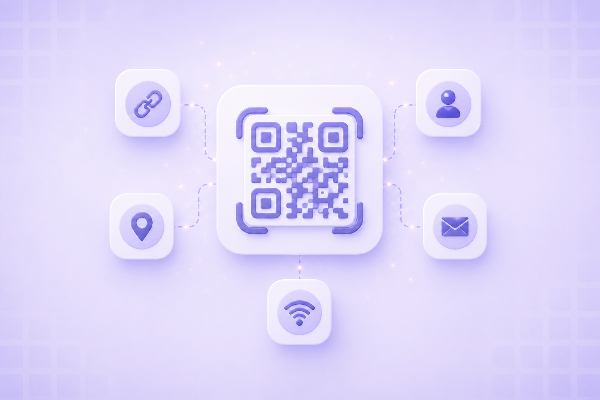
QR codes have become standard infrastructure for small businesses. A printed menu with a QR code. A counter card that connects guests to your WiFi. A business card that loads your contact details with a single scan. All of these take about two minutes to set up and cost nothing. This guide covers the five QR code types that will actually be useful to your business — and how to create each one for free.
Why QR Codes Are Worth Using
Smartphone camera apps can read QR codes natively without a separate app. This means your customers, guests, and contacts can scan a QR code in under two seconds. For businesses, this removes friction at the exact moments that matter: when a guest wants WiFi, when a customer wants your menu, when a prospect scans your business card.
You don't need a QR code management platform or a monthly subscription. For static content — a link, a password, a vCard — a free QR code generator works perfectly.
1. URL QR Code: Point Customers Anywhere
The URL QR code is the most versatile type. It encodes any web address and takes the scanner directly to that page. Use DecoToolkit's URL QR Code Generator to create one in seconds.
Good uses for a URL QR code:
- Your homepage or a specific landing page
- A Google Maps listing so customers can quickly leave a review
- An online booking or reservation link
- A product page or online store
- A feedback or survey form
Tip: If you're printing on physical materials, include the URL in plain text below the code as a fallback for customers who prefer typing.
2. WiFi QR Code: No More 'What's the Password?'
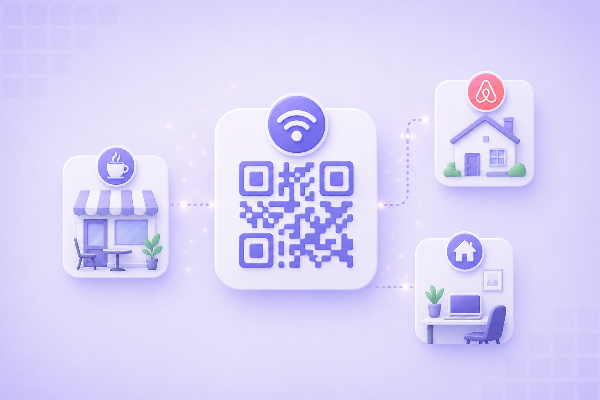
A WiFi QR code encodes your network name (SSID) and password so guests can connect by scanning — without typing the password. Use DecoToolkit's WiFi QR Code Generator to create one.
This is one of the highest-value QR codes for cafes, restaurants, hotels, salons, co-working spaces, and any business with a waiting area. It saves staff time and looks professional on a counter card or table.
How to use it:
1. Create a WiFi QR code with your network name and password.
2. Download and print it, or display it on a screen near the entrance or seating area.
3. When you change your WiFi password, create a new QR code and replace the old one.
Security note: The password is encoded in the QR code. Use a separate guest network for public WiFi so your main business network stays protected.
3. vCard QR Code: Your Digital Business Card
A vCard QR code encodes your contact information — name, phone, email, company, website — in a format that smartphones import directly into the Contacts app. Use DecoToolkit's vCard QR Code Generator to create one.
One scan, one tap, and your contact is saved with all details correctly formatted. Print it on the back of your business card, include it in email signatures, or add it to your LinkedIn profile.
What to include:
- Full name and job title
- Business phone number and email address
- Company name and website
- Optional: address, social media handles
4. Menu QR Code: The Contactless Dining Standard
A menu QR code links directly to your menu — a PDF, a web page, or an ordering platform URL. Use DecoToolkit's Menu QR Code Generator to create a scannable code specifically for restaurant and cafe menus.
Updating your menu no longer requires reprinting physical copies — just update the linked page and the same QR code continues working.
Best practices:
- Link to a mobile-optimized menu. A PDF works but a responsive web page with sections is better.
- Place the code on table tent cards, at the bar, and at the entrance.
- Keep a small number of physical menus for guests who prefer them.
- Update the linked page when menu items change rather than replacing the QR code.
5. Event QR Code: Save the Date, Instantly
An event QR code encodes event details — title, date, time, location, description — in iCalendar format so attendees can add it to their calendar app with one tap. Use DecoToolkit's Event QR Code Generator to create one.
Useful for: conferences, workshops, meetups, store openings, product launches, weekly classes, markets, and seasonal events.
Instead of asking people to remember dates, a single scan creates the calendar entry immediately — address, notes, and all details already filled in.
How to Place QR Codes Effectively
Creating the QR code is only half the job. Where and how you display it determines whether it gets scanned.
Size: At arm's length (about 30 cm), a code should be at least 2.5 x 2.5 cm (1 inch square). Scale up for outdoor signage.
Contrast: Black on white is the most reliable. Avoid patterned backgrounds or low-contrast color combinations.
Context: Always include a brief label explaining what the code does. 'Scan for WiFi', 'Scan to see our menu', 'Scan to save my contact' tells people exactly what will happen.
Test before printing: Scan the code with both iOS and Android before committing to a print run. Some codes look correct but decode incorrectly if exported at low resolution.
Frequently Asked Questions
Do QR codes expire?
Static QR codes — like the ones these tools generate — never expire as long as the content they point to is accessible. A URL QR code is valid as long as the linked page exists. A vCard QR code is permanently valid because the data is encoded inside the code itself.
Can I use the same QR code for multiple locations?
Yes, for URL-based codes that share the same destination. If you need to track which location gets more scans, use separate URLs with UTM parameters for each location.
What file format should I download the QR code in?
Download as PNG for digital use (websites, email signatures). For print, download as SVG if available — it scales to any size without losing quality.
Is it safe to share a WiFi QR code publicly?
With caution. Anyone who scans gets your WiFi password. Use a guest network with a separate password for the QR code so your main business network is not exposed.
Do customers need an app to scan a QR code?
No. iPhone (iOS 11+) and Android (9+) camera apps read QR codes natively. Open the camera, point it at the code, and tap the notification. No separate app required.