JSON Formatter Online: Format, Validate, and Debug JSON Instantly
Équipe DecoToolkit
Produit & Contenu
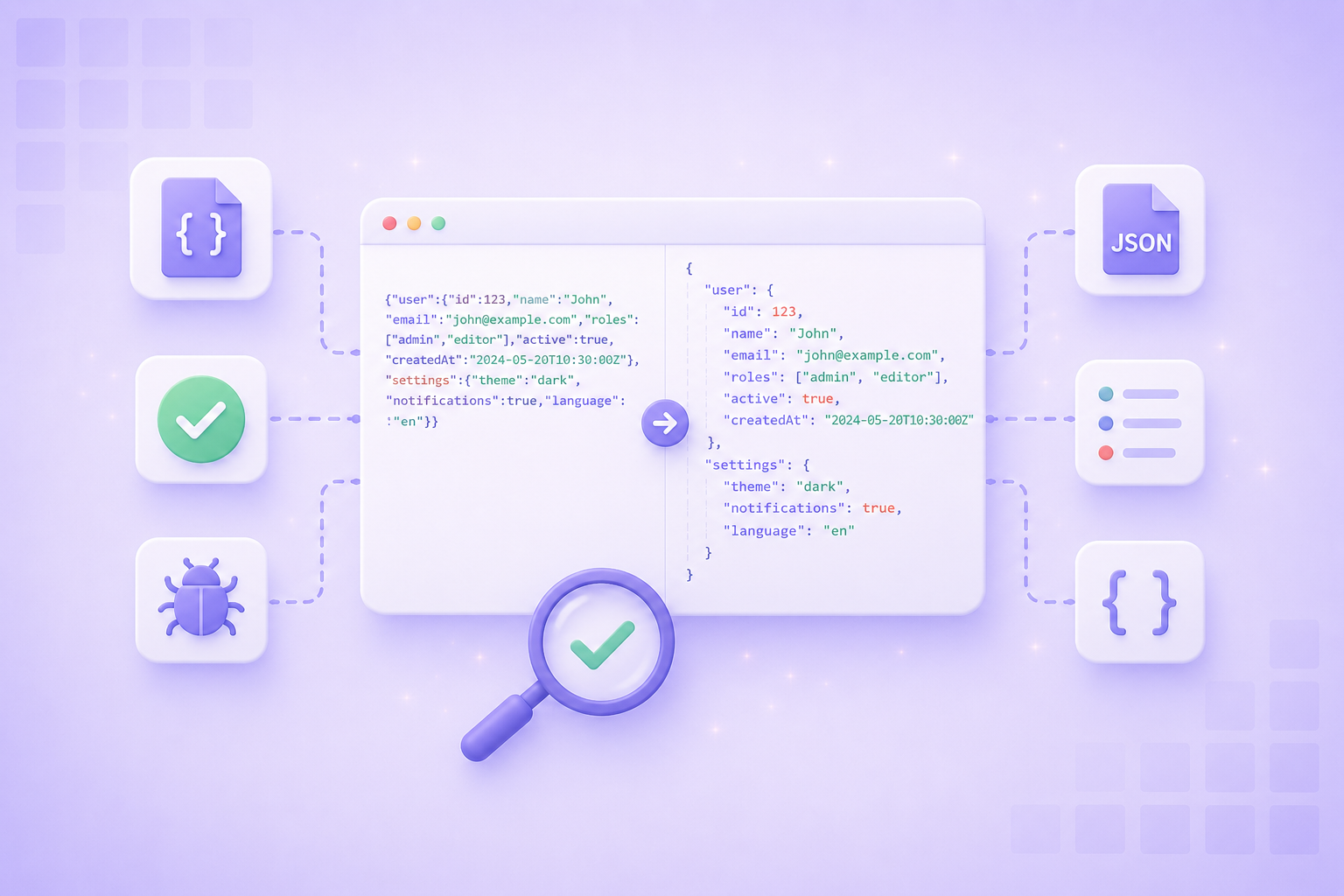
If you have ever received a response from an API and stared at a single unbroken line of JSON trying to find the problem, you already know why a JSON formatter matters. Formatted JSON is readable JSON. Unformatted JSON is a debugging nightmare.
A JSON formatter takes raw, compact, or broken JSON and restructures it with proper indentation, line breaks, and syntax highlighting. The result is a version you can actually read and inspect — which makes every other JSON task faster.
What JSON Formatting Actually Does
JSON formatting, also called pretty-printing, takes a valid JSON string and rewrites it with consistent indentation and line breaks. This does not change the data. The value is identical whether it is compressed on one line or spread across fifty. What changes is how easy it is to work with.
Formatted JSON lets you scan structure at a glance, spot missing brackets or commas, compare two responses, and understand nested objects quickly. It is one of those tools that feels minor until you are debugging a complex API payload at midnight.
Validation is the other half of the picture. A JSON formatter that also validates tells you whether your JSON is syntactically correct. If it is not, a good tool tells you exactly where the error is so you do not have to search manually.
Common JSON Syntax Errors and How to Spot Them
Most JSON errors fall into a small set of recurring patterns. Knowing them makes debugging faster.
- Trailing commas — JSON does not allow a comma after the last item in an object or array. This is one of the most common errors for developers coming from JavaScript, which is more forgiving.
- Unquoted keys — In JSON, all keys must be in double quotes. Single quotes are not valid. A key like name: "value" is invalid. It must be "name": "value".
- Single-quoted strings — JSON strings must use double quotes. Single-quoted values will cause a parse error even though they look valid to most people.
- Missing or extra brackets — Nested objects and arrays require every opening bracket to have a closing pair. A missing } or ] at the end of a large payload is easy to miss without a formatter.
- Unescaped special characters — Newlines, tabs, and special characters inside string values need to be escaped. A raw newline inside a JSON string causes a parse failure.
A JSON validator catches all of these automatically. Instead of reading through lines manually, you paste the payload, and the tool tells you the line and column of the first issue.
How to Use the DecoToolkit JSON Formatter
The DecoToolkit JSON Formatter works entirely in your browser. Nothing is sent to a server. Here is a typical workflow.
Paste your JSON into the input field. This can be a compressed API response, a config file, a log entry, or anything that should be valid JSON. The tool processes it immediately.
If the input is valid, the output panel shows the formatted version with proper indentation and structure. If the input contains errors, the tool highlights the problem and tells you what went wrong.
From there, you can copy the formatted output for documentation, clean it up before pasting it into a code review, or share it with a teammate. The formatter also lets you minify JSON back into a single line for storage or API requests.
Because the tool runs in the browser, it is safe for sensitive data like API tokens, internal configs, or test credentials. Nothing leaves your machine.
JSON vs YAML: When to Use Which
JSON and YAML are both common data serialization formats, but they serve different contexts. JSON is the default for APIs, web services, and most programmatic data exchange. It is strict, compact, and widely supported by every language and framework.
YAML is often preferred for configuration files, CI/CD pipelines, and human-edited settings files because it is easier to read and write by hand. YAML supports comments, which JSON does not, making it more practical for files that humans maintain over time.
If you are working with a codebase that mixes both formats, or need to convert between them, the DecoToolkit YAML to JSON Converter handles the conversion automatically. It detects the input format and outputs the other without guesswork.
JSON in Developer Workflows
JSON formatting is most useful as part of a broader workflow. A few common scenarios where it saves real time:
- Debugging API responses — Copy the raw response from a network tab or curl output, paste it into the formatter, and immediately see the full structure.
- Inspecting JWT tokens — A JWT payload is Base64-encoded JSON. Decode the middle segment using a Base64 decoder, then format the result to inspect claims clearly.
- Cleaning config files — JSON-based config files can drift into hard-to-read territory. A formatter standardizes indentation and helps catch accidental errors during code review.
- Sharing data with teammates — A well-formatted JSON block in a PR comment, issue, or Slack message is much easier to read than a minified blob.
For regex-based JSON parsing or string matching inside JSON payloads, the DecoToolkit Regex Tester is a useful companion. You can test patterns against formatted JSON without leaving the browser.
Frequently Asked Questions
Is the JSON formatter safe for sensitive data?
Yes. The DecoToolkit JSON Formatter runs entirely in your browser. Your data is never sent to any server. This makes it safe to use with API keys, auth tokens, internal configs, or any other sensitive content.
What is the difference between formatting and validating JSON?
Formatting changes how JSON looks by adding indentation and line breaks. Validating checks whether the JSON is syntactically correct. The DecoToolkit JSON Formatter does both: it formats valid JSON and reports errors for invalid JSON.
Can I minify JSON back to a single line?
Yes. The tool supports both directions. You can pretty-print formatted JSON and you can minify it back into a compact single-line string for use in API requests or storage.
Does JSON allow comments?
No. Standard JSON does not support comments. If you need comments in a config or settings file, YAML is usually the better format. You can convert between the two using the DecoToolkit YAML to JSON Converter.
What is the difference between JSON and JSONC?
JSONC is a non-standard extension of JSON used in some tooling, notably VS Code settings files, that allows comments. Standard JSON parsers will not accept JSONC. If you see a JSON file with comments that is failing to parse, it is likely JSONC formatted and needs a compatible parser.
Conclusion
A JSON formatter is one of the simplest tools in a developer's toolkit, but it earns its place in nearly every workflow that touches APIs, configuration, or data exchange. Clean, validated JSON is faster to debug, easier to share, and harder to misread.
The DecoToolkit JSON Formatter works in your browser, handles both formatting and validation, and keeps your data private. Whether you are cleaning up an API response, inspecting a JWT payload, or converting a YAML config to JSON, it is worth keeping in your browser bookmarks.