How to Convert Word to PDF Without Losing Formatting
Equipo de DecoToolkit
Producto y Contenido
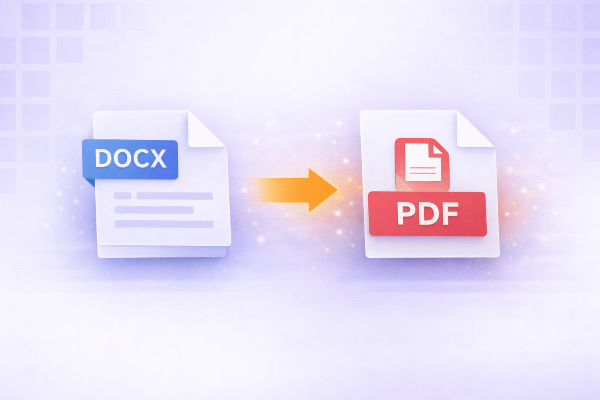
If you have ever sent a Word document and watched the layout break on another device, you already know why PDF matters. A PDF keeps the structure of the document stable, making it easier to share contracts, resumes, proposals, academic work, and any file that should look the same everywhere.
The problem is that many people still worry about formatting. Fonts can shift, margins can move, page breaks can change, and images can jump. The good news is that most formatting problems do not happen because PDF is unreliable. They happen because the original Word file was not prepared well before conversion.
The first thing to check is the source file. Open your document and make sure headings, body text, and captions use consistent styles. If a file was built with lots of manual spacing, repeated tabs, and random line breaks, the risk of layout issues is much higher. Structured formatting always converts better than improvised formatting.
Next, look at fonts. If you are using very specific fonts that may not be installed everywhere, PDF is actually the safer choice because it preserves the appearance at export time. Before converting, scroll through the document and confirm that all text, bullets, tables, and footers look exactly right. It is much easier to fix the source than to repair the PDF afterward.
Images also deserve a quick check. Large images can make the document heavier than necessary, while low-resolution images can look blurry in the final PDF. Resize or compress oversized images before conversion if file size matters. This is especially useful for resumes, presentations turned into reports, and portfolios.
Then review page settings. Confirm the paper size, orientation, margins, and page breaks. A letter-sized document can behave differently from an A4 layout, so it is worth checking the output requirements before converting. This is particularly important for business documents that will be printed.
When you are ready, upload the file to a reliable Word to PDF converter. A good tool should keep the layout stable, preserve images and spacing, and generate a PDF quickly without forcing unnecessary edits or sign-ups. After conversion, download the PDF and inspect it carefully. Zoom in on tables, headers, signatures, links, and page numbers. Open it on desktop and mobile if the file will be shared widely.
If the result looks wrong, the issue is usually one of four things: unsupported or unusual fonts, inconsistent paragraph styles, oversized media, or manual layout tricks inside the original DOCX. Fix those in Word first, then convert again. A second export after cleanup usually solves the problem.
It is also worth thinking about why you are converting. If the file is meant for review and comments, Word may still be useful during drafting. But once the document is ready for distribution, PDF is better for consistency. Recruiters, clients, teachers, and teams often expect the final version as a PDF for exactly this reason.
For best results, keep your workflow simple: clean the Word document, confirm layout and assets, convert, and review the exported file. If your tool also supports drag and drop and works directly in the browser, the process becomes even faster.
If you often share proposals, resumes, reports, or formal documents, having a quick Word to PDF workflow saves time and avoids messy formatting surprises. It is one of those small habits that makes your files look much more professional.